VanDyke SecureCRT and SecureFX v9.3.2.2978终端仿真器文件传输客户端
SecureCRT是一个非常可定制的终端仿真器,支持安全外壳( SSH )以及Telnet、Telnet / TLS和串行协议。SecureCRT非常适合安全连接到运行Windows、UNIX和虚拟机的远程系统。SecureCRT支持通过Xmodem、Zmodem、Ymodem、Kermit和SFTP进行安全文件传输。
SecureFX是一款高安全性的文件传输客户端,在配置和传输协议方面具有极大的灵活性。 SecureFX包含一个命令行实用程序(SFXCL),用于脚本化批处理作业,以使用安全Shell协议(SSH)执行安全的无人值守文件传输。 SecureFX还支持“无情”的文件传输,当传输连接断开时,它会自动重新连接并恢复。
SecureCRT/SecureFX8.3.4功能特点
- 在运行Windows,Linux和Mac的机器上安全地访问UNIX,Linux或VMS上的业务应用程序 – 采用对VT100 / 102/220,TN3270,ANSI,SCO ANSI,Wyse 50/60,Xterm和Linux控制台的丰富模拟支持。
- 无论您拥有一个还是数千个会话,都可以完全控制回滚,键映射,颜色,字体等来配置,管理和组织所有会话。
- 使用SSH(SSH2,SSH1),Telnet,Telnet / TLS,串行和其他协议从一个客户端访问全部网络设备。
- 利用具有省时功能的高生产力GUI,包括多会话启动,选项卡式会话,选项卡组,平铺会话,克隆会话,重复命令按钮栏和映射键。
- 取决于用于加密登录和会话数据的开放标准Secure Shell(SSH)协议,灵活的身份验证选项以及可选的经FIPS 140-2批准的密码。
- 通过使用VBScript,JScript,PerlScript或Python运行脚本,使SecureCRT中的重复任务自动化。脚本记录器将您的按键创建为VBScript或Python脚本。
- 使用SFTP,Xmodem,Ymodem,Zmodem或Kermit在网络设备之间传输文件。内置的TFTP服务器提供了额外的文件传输灵活性。
- 通过SecureCRT和SecureFX®文件传输客户端的紧密集成来保存步骤,这些客户端共享会话和设置,可以在不重新输入密码的情况下运行SFTP,FTP,SCP和FTP / TLS文件传输会话。
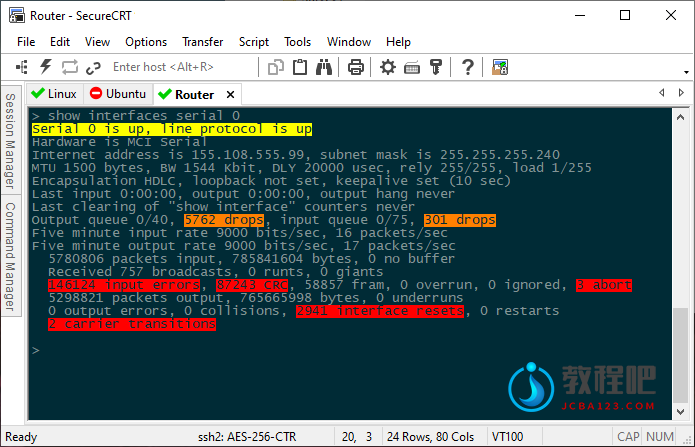
SecureCRT®
SecureCRT client for Windows, Mac, and Linux provides rock-solid terminal emulation for computing professionals, raising productivity with advanced session management and a host of ways to save time and streamline repetitive tasks. SecureCRT provides secure remote access, file transfer, and data tunneling for everyone in your organization.
Whether you are replacing Telnet or Terminal, or need a more capable secure remote access tool, SecureCRT is an application you can live in all day long. With the solid security of SSH, extensive session management, and advanced scripting, SecureCRT will help raise your productivity to the nth degree.
Key Benefits
Securely access business applications on UNIX, Linux, or VMS from machines running Windows, Linux, and Mac — employ the rich emulation support for VT100/102/220, TN3270, ANSI, SCO ANSI, Wyse 50/60, Xterm, and Linux console.
Configure, manage, and organize all your sessions with full control over scrollback, key mappings, colors, fonts, and more — whether you have one or thousands of sessions.
Access your full array of network devices from one client with SSH (SSH2, SSH1), Telnet, Telnet/TLS, serial, and other protocols.
Leverage the high-productivity GUI with time-saving capabilities including multi-session launch, tabbed sessions, tab groups, tiled sessions, cloned sessions, a button barfor repeated commands, and mapped keys.
Depend on the open standard Secure Shell (SSH) protocol for encrypted logon and session data, flexible authentication options, and optional FIPS 140-2 -approved ciphers.
Automate repetitive tasks in SecureCRT by running scripts using VBScript, JScript, PerlScript, or Python. The script recorder builds your keystrokes into a VBScript or Python script.
Transfer files between network devices with SFTP, Xmodem, Ymodem, Zmodem, or Kermit. A built-in TFTP server provides additional file transfer flexibility.
Save steps with the close integration of SecureCRT and the SecureFX® file transfer client, which share sessions and settings that let you run SFTP, FTP, SCP, and FTP/TLS file transfer sessions without reentering passwords.
SecureFX®
Download SecureFX for a free 30-day evaluation. Our flexible file transfer client gives you the tools you need to increase the security and efficiency of file transfer operations and site synchronization. SecureFX’s user-friendly interface makes it easy to learn, and support for multiple platforms allows you to apply the strong encryption and authentication mechanism of Secure Shell protocol to your data-in-transit.
Key Benefits
Maintain file systems and documents securely. Transfer files across networks and the internet with a choice of SFTP over SSH2, FTP over TLS, SCP, or FTP for access to legacy systems.
Get started quickly. Connect to sessions from the main application window using the Connect bar, then organize those sessions with the easy-to-learn tabbed interface.
Leverage the high-productivity UI. Drag and drop files to start transfers (Windows only), even between SecureFX and applications like WinZip. Quickly find the files you want to work with using the filter view, bookmarks, and the address bar.
Synchronize files. Upload, download, and mirror files. Use filtering to include or exclude files or file types. Store configurations for multiple sites.
Recover more easily when transfers fail. SecureFX works to complete interrupted transfers, automatically resuming multi-file transfers.
Save steps with integrated SecureFX and SecureCRT®. Set up connections with shared sessions and server host keys. Common sessions and settings reduce repeated steps.
Make transfers unattended. The SFXCL command-line client (Windows only) allows you to automate tasks with powerful options like site synchronization. You can also use the built-in task scheduler (Windows only) to schedule transfer and synchronize operations once or at recurring intervals.
Comply with Federal standards. Use security protocols that help meet HIPAA, SOX, and other guidelines, including FIPS 140-2.
Home Page: https://www.vandyke.com
下载地址
VanDyke SecureCRT and SecureFX v9.3.2.2978终端仿真器文件传输客户端Windows
https://www.123pan.com/s/PjcA-leDRA.html
http://ctfile.luochenzhimu.com/d/13552432-61168807-25b4e8
https://pan.baidu.com/s/18x1_ZweK2jq4gpF6JKGA7w?pwd=i5fa
https://pan.xunlei.com/s/VNxNTmCw5jaF-jBO8qfO8j9BA1?pwd=65qn#
VanDyke SecureCRT and SecureFX v9.3.2.2978终端仿真器文件传输客户端macOS
https://www.123pan.com/s/PjcA-7eDRA.html
http://ctfile.luochenzhimu.com/d/13552432-61168804-f20805
https://pan.baidu.com/s/1pGFDoam8wiEFymZr_1_A7A?pwd=fv9g
https://pan.xunlei.com/s/VNxNTjEhmI_nlbO6bTPlTZZjA1?pwd=j8ay#