Part 5_Excel 12中的排序问题(一)_Excel 2007新知
译者:lfspecter 来源:http://blogs.msdn.com/excel
发表于:2006年7月7日
Tables Part 5: Everything you wanted to know about sorting in Excel 12
表格部分 5: Excel 12中的排序问题
I mentioned in my previous post that the three-condition limit on sorting (Data|Sort) has been removed in Excel 12. As someone correctly pointed out in a comment many posts ago, this means the current sort dialog has changed in Excel 12. Here’s what the new dialog will look like (as always, all the details aren’t finalized, but the key features are clear) if you were in the middle of trying to sort a table by 5 columns:
我在以前的贴中已提到过,在Excel12中去除了排序(数据|排序)的三个条件限制。正如有人在以前的贴中指出的,这意味着在Excel12中,排序对话框改变了。下面就是当试图在新的对话框对5列进行排序的的样子(和以往一样,细节上没有最终确定,但主要特点很清晰)。
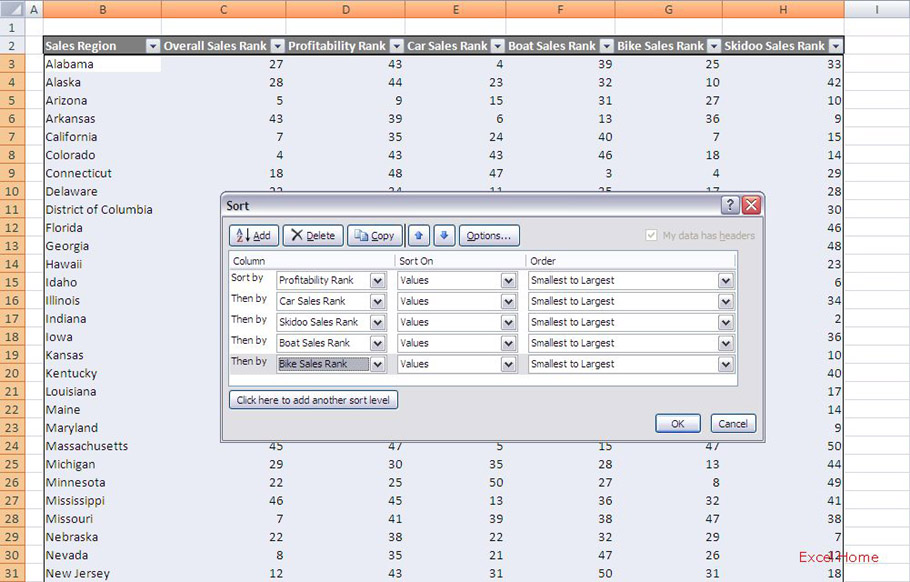
The dialog is similar in behaviour to the Conditional Formatting Rules Manager discussed in an earlier post. To create sort conditions, users just need to just click on the “Add” button – users can now sort on up to 64 columns – and specify what they want the sort criteria to be. Just like with filters, sorts are smart about data types so we use that information to offer settings that are more descriptive and easier to understand than “ascending” and “descending’. For example, for text columns you will see “A to Z” and “Z to A”, for numeric columns you will see “smallest to largest” and “largest to smallest”, and for date columns you will see “newest to oldest” and “oldest to newest”. Sort conditions can be reordered using the buttons at the top of the dialog. Sort conditions can also be copied to save time. The Options button allows users to specify whether the sort should be case sensitive and allows users to specify the sort orientation (both of these features exist in Excel 2003).
这个对话框的特性和以前讨论的条件格式类似。 若创建排序条件,用户只需点击“增加”按钮 – 用户即可进行64列以上的排序 – 同时指定他们需要的排序标准. 和筛选功能类似,排序可以智能识别数据类型,我们利用此信息来设置比“升序”和“降序”更清晰易懂的排序描述 例如,对于文字列,你会看到 “A 到 Z” 和 “Z 到 A”, 对于数字列,你会看到 “最小到最大” 和 “最大到最小”, 对于日期列,你会看到 “最新到最老” 和 “最老到最新”. 排序条件可以用对话框最上面的按钮进行重新排列. 排序条件也可以复制以节省时间. 选择按钮允许用户指定排序是否需区分大小写,也允许用户指定排序方向 (这两种特点在 Excel 2003中都有).
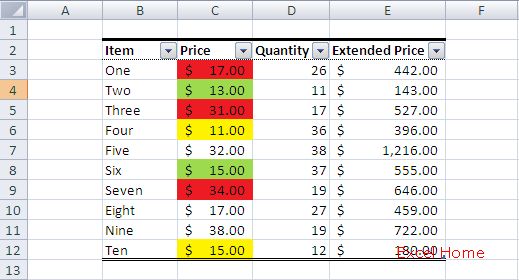
To see a bit more of the new functionality we have enabled in Excel 12, let’s take a look at another example. Assume I have the following table which contains both manually-applied and conditional formatting (ignore the data – I used RANDBETWEEN() to generate that).
为了更好的理解我们在Excel 12中激活的新功能内容, 让我们看另外一个例子. 假设下面的表格里包含手工设置的格式和条件格式 (不要在意这些数据 – 我是用RANDBETWEEN()函数生成它们的).
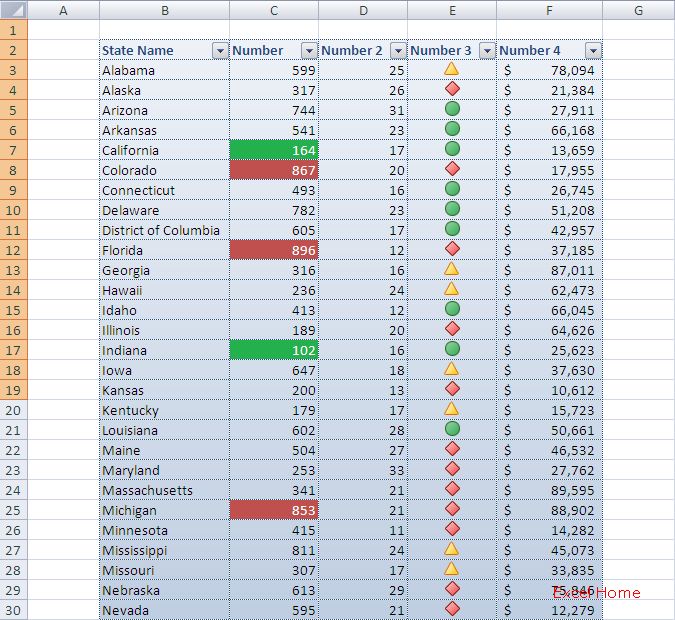
One of the common requests we hear from users is the desire to sort by colour, either manually applied or applied by conditional format. In Excel 12, we bring you exactly that – in addition to cell value, you can sort by
background colour (however applied)
font colour, (however applied)
cell icon (applied via conditional formatting).
For example, I might set up several conditions on the table of data we just looked at …
我们从用户处得到的一个需求是按照颜色排序, 无论颜色产生于手工设置的格式还是条件格式 在 Excel 12中, 我们带给您一种新方法 – 除了单元格数值, 你还可以按以下内容排序:
背景颜色 (无论是怎么设置的)
字体颜色 (无论是怎么设置的)
单元图表 (通过条件格式设置的).
举例,我可以在表格中的数据上设置几个条件,我们看 …
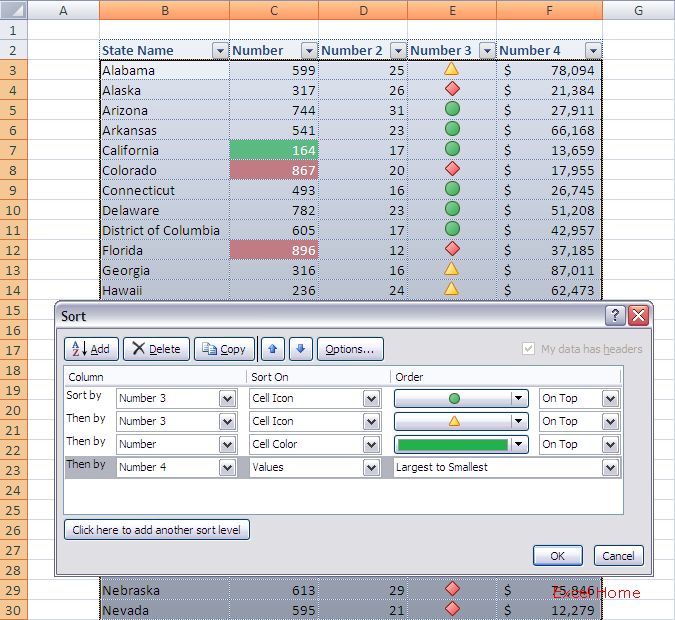
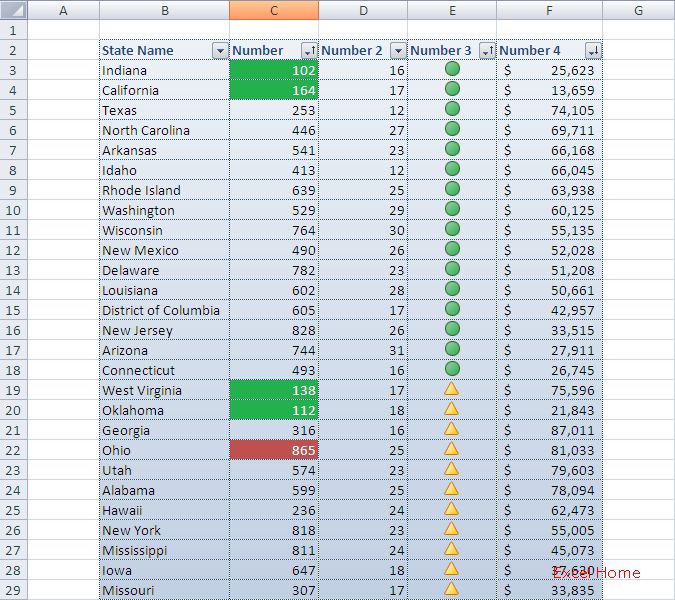
… and when I press OK, Excel will apply the sort appropriately. Notice the filter buttons again show me the state of each column.
当我点一下OK, Excel 将会恰当的进行排序. 请注意,筛选按钮将再次显示每一栏的状态
I want to mention two other improvements that we have made that I think certain people will really appreciate. First, we have made it possible to specify a sort order of “Custom List” at every level of sorting. Second, we have made it possible to create a new custom list from within the context of the Sort dialog.
我想提一下我们所做的另外两个改进,一些用户会觉得很有益处 首先, 我们实现了在每一层排序都可以特定一个“自定义序列” 第二,从排序对话框里可创建新的自定义序列.
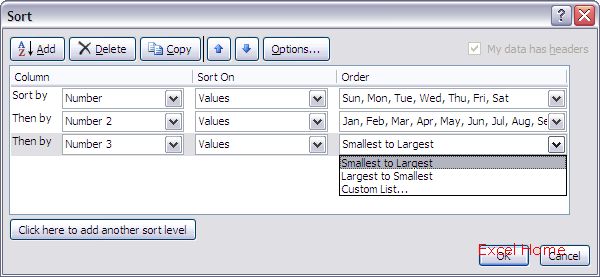
(We have also added the ability to sort by colour or cell icon to our in-grid filter capabilities (nee AutoFilter). Say I started with the following table …
我们也在表格内置的筛选功能(又称自动筛选)中加入了对颜色或单元格图标进行排序的能力 我将用下面表格演示 …